
To access any TSC online service, open the master hub at services.tsc.go.ke or go to www.tsc.go.ke → Online Services. You need your TSC Number, National ID number, and a portal-specific password. The Commission runs six separate platforms: T-Pay payslips, TPAD2 appraisal, HRMIS leave and transfers, TMIS school returns, and teacher registration. All services are 100% free.
📌 TSC Online Services — Quick Portal Access Card
- TSC Online Services Master Hub: services.tsc.go.ke
- T-Pay Payslips & P9 Tax Forms: payslip.tsc.go.ke
- TPAD2 Teacher Appraisal: tpad2.tsc.go.ke
- HRMIS (Leave, Transfers & Promotions): hrmis.tsc.go.ke
- TMIS — Institutional Staff Returns: tmis.tsc.go.ke
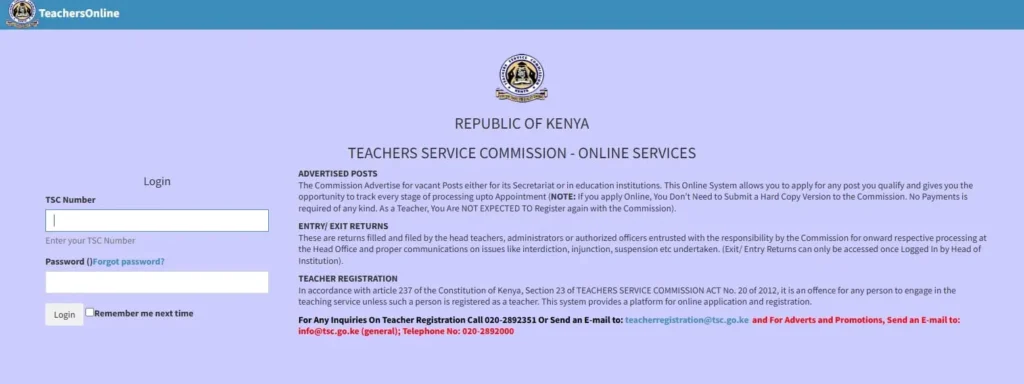
- Teacher Online Registration: teachersonline.tsc.go.ke
- Login Requirements: TSC Number + National ID Number + portal-specific password
- Zero-Fee Policy: Every TSC portal service is free. Report payment demands to info@tsc.go.ke
Quick Access: Direct Login Links to All TSC Portals
Every button below connects to a verified government endpoint under the tsc.go.ke domain. If a link opens to a Microsoft sign-in page, that is expected — the TSC email system runs on Microsoft Azure infrastructure. Start at the TSC services master hub if you are unsure which sub-portal handles your task.
Quick Navigation Guide
TSC Online Portal Directory: Which Portal Handles Your Task?
The TSC services login is task-specific — each platform within the www.tsc.go.ke online services network has its own login page and its own set of credentials. Use the table below to match your goal to the correct portal and confirm exactly what you need before opening your browser:
| Portal Name | Direct Login URL | Primary Purpose | Required Credentials |
|---|---|---|---|
| TSC Services Master Hub | services.tsc.go.ke | Central directory linking all TSC sub-portals | No login required for the directory page |
| T-Pay Payslip Portal | payslip.tsc.go.ke | Monthly payslips, P9 tax forms, SACCO loan codes, deduction schedules | TSC Number + T-Pay password |
| TPAD2 Appraisal System | tpad2.tsc.go.ke | Termly teacher self-appraisal, lesson observations, HOI sign-off | TSC Number + National ID Number + TPAD2 password |
| HRMIS | hrmis.tsc.go.ke | Leave applications, station transfer requests, study leave, promotions | TSC Number + National ID Number + on-screen Validation Code |
| TMIS | tmis.tsc.go.ke | Institutional staff returns, learner enrollment, staffing establishment data | School Code + Assigned institutional password (Headteachers & Principals only) |
| Teacher Online Registration | teachersonline.tsc.go.ke | First-time TSC certificate registration, application status tracking, promotions | National ID Number + scanned academic documents |
1. T-Pay Login Guide: Payslips, P9 Tax Forms & Salary Deductions
The TSC portal payslip system runs at payslip.tsc.go.ke. Every teacher on the Commission payroll uses T-Pay as the single point of entry for salary slips, annual P9 tax certificates, SACCO loan clearance codes, and deduction breakdowns. Your T-Pay password is separate from your TPAD2 and HRMIS passwords — the three systems do not share credentials. Teachers who previously accessed salary records through the old UHR route now use T-Pay for the same records.
Step-by-Step: How to Access Your TSC Payslip on T-Pay
- Open your browser and go to payslip.tsc.go.ke. Confirm the URL shows
https://— the padlock must be visible before entering any credentials. - In the Username field, type your TSC Number. Enter digits only — do not type the “TSC/” prefix.
- Enter your T-Pay Password. If you have never changed it, use the temporary password sent to your registered phone number during initial activation.
- Click Log In. Your dashboard opens showing the most recent monthly payslip.
- To view a different month, open the Select Month dropdown and choose the year and month you need, then click View Payslip.
- To save or print, press Ctrl + P (Windows) or Cmd + P (Mac) inside the payslip view and select Save as PDF.
How to Download Your P9 Tax Certificate on T-Pay
Your P9 annual tax certificate is the document KRA requires when you file your income tax return on iTax. To retrieve it from T-Pay:
- Log in at payslip.tsc.go.ke with your TSC Number and T-Pay password.
- Click P9 Certificate from the main navigation menu or from the dashboard quick-links panel.
- Select the relevant tax year from the dropdown (January to December of the previous calendar year).
- Click Generate P9. The certificate opens as a PDF in a new browser tab.
- Download the PDF or print a physical copy for your KRA filing records.
How to Reset Your T-Pay Password
- Active SIM card (self-service reset): Click Forgot Password on the T-Pay login screen. An OTP is sent immediately by SMS to the mobile number registered on your TSC payroll record. Enter the OTP, create a new password, and log back in.
- Lost or inactive SIM card: Self-service reset fails if your registered number is unreachable. You must visit your Sub-County Director of Education (TSC) office in person with your original National ID card. An officer will update your payroll mobile contact on the central server before you can reset your password.
2. TPAD2 Login Guide: Termly Appraisal & Lesson Observations

The Teacher Performance Appraisal and Development system at tpad2.tsc.go.ke is where all public school teachers in Kenya record termly self-appraisals, subject target ratings, and lesson observation evidence. Completing and submitting your appraisal every term is mandatory under the Career Progression Guidelines (CPG) — an incomplete TPAD2 record directly lowers your suitability score for promotions and appointment to administrative positions.
Step-by-Step: TPAD2 Login Process
- Navigate to tpad2.tsc.go.ke in Chrome 115+ or Firefox 116+. These browsers fully support the portal’s TLS security requirements.
- Enter your TSC Number in the first login field.
- Enter your National ID Number in the second field.
- Enter your TPAD2 Password. If logging in for the first time, click First Time Login and follow the prompts to activate your account using your TSC Number and National ID.
- Click Sign In. Your dashboard displays active appraisal cycles, pending lesson observations, and your school’s overall submission status.
TPAD2 Appraisal Workflow: What Every Teacher Must Complete Each Term
- Weeks 1–4 of the term: Log in and fill your Self-Appraisal Targets for each subject on your timetable. Select realistic, curriculum-aligned ratings — do not leave any subject blank.
- Mid-term window: Your Head of Department or Deputy Principal logs in under their own credentials to record your Lesson Observation scores from the scheduled classroom visit.
- End of term: Your Head of Institution reviews all scores, arbitrates any disputes, and clicks Submit to Sub-County. The HOI must complete this step — individual teachers cannot submit their own appraisals to the Commission.
- Avoid the deadline rush: TPAD2 experiences heavy server congestion in the final two weeks of each term when thousands of schools submit simultaneously. Upload your targets and evidence early in the term. Late submissions risk “System Unavailable” errors that directly affect your progression record.
3. HRMIS Login Guide: Leave Applications & Station Transfer Requests
The Human Resource Management Information System at hrmis.tsc.go.ke manages leave applications, station transfer requests, study leave, and promotions for all serving teachers. Paper leave letters and physical transfer files submitted to Upper Hill are no longer processed by the Commission. Both workflows are fully digital through HRMIS. Log in with your TSC Number, National ID Number, and the Validation Code displayed on the login screen — this code refreshes with each page load.
Step-by-Step: How to Submit a Leave Application on HRMIS
- Go to hrmis.tsc.go.ke and log in with your TSC Number, National ID Number, and the current on-screen Validation Code.
- On the teacher dashboard, click Leave Management → Apply for Leave.
- From the Leave Type dropdown, select the applicable category: Annual Leave, Sick Leave, Maternity Leave, Paternity Leave, Study Leave, or Compassionate Leave.
- Set the Start Date and End Date for your leave period.
- Upload the required attachments. A medical certificate signed by a registered medical practitioner is mandatory for sick leave exceeding seven days. A doctor’s expected delivery notice is required for maternity leave.
- Click Submit Application. Record the reference number shown on the confirmation screen.
- Track the approval chain: Your Head of Institution receives an automated alert to recommend or decline. The Sub-County Director of Education provides final statutory approval. Submitting your application online does not place you on approved leave — wait for confirmation from your HOI before absenting yourself.
Step-by-Step: How to Apply for a Station Transfer via HRMIS
- Log in to hrmis.tsc.go.ke with your TSC Number, National ID Number, and Validation Code.
- Click Transfer & Deployment → Apply for Transfer.
- Select the transfer type: Ordinary Transfer, Medical Transfer, or Mutual Swap.
- Complete all mandatory fields: current station details, preferred destination county, and the reason for transfer.
- For a Mutual Swap: enter the TSC Number of the teacher you are swapping with. Both teachers must match in subject combination and job group, and both must submit the swap request simultaneously from their own HRMIS accounts.
- Upload supporting documents — a certified medical report for medical transfers, a swap agreement letter for mutual swaps.
- Click Submit Transfer Request. Note your reference number.
- To check your transfer status, return to HRMIS → Transfer & Deployment → My Transfer Requests. Your status displays as Pending, Approved, or Rejected.
⚠️ Transfer Rules Every Kenyan Teacher Must Know
Teachers must serve a minimum of five continuous years at their posted station before qualifying for an ordinary transfer. Exceptions apply only on certified, verified medical grounds. An HRMIS status of “Approved” does not authorize you to hand over the keys and leave — you must hold an official hard-copy TSC Transfer Letter and a signed Release Letter from your outgoing Head of Institution before reporting to any new school.
4. TMIS Login: Institutional Staff Returns (Headteachers & Principals Only)
The Teacher Management Information System at tmis.tsc.go.ke is a restricted platform for Heads of Institutions — headteachers, principals, and authorised TSC Sub-County Field Officers. Individual classroom teachers do not have TMIS accounts, and the portal does not appear under a teacher’s personal TSC dashboard.
- Login credentials: Your institution’s School Code and the password assigned to your school by the Commission. If your school code or password is lost, contact your Sub-County TSC office to have it reset.
- Monthly staff returns: Submit teacher deployment lists, record staff on approved leave or study leave, and update subject allocation data before each month-end deadline set by your Sub-County.
- Learner enrollment records: Capture current enrollment figures for all classes and streams. These numbers feed into Curriculum-Based Establishment (CBE) calculations and determine government capitation grant disbursements.
- Correcting teacher records on TPAD2: If a teacher’s subject combination, station, or designation appears incorrectly on their TPAD2 appraisal profile, the Head of Institution must log in to TMIS and correct the institutional return first. Individual teachers cannot edit their own deployment records on TPAD2.
5. Teacher Registration, Status Tracking & Promotion Applications
Every graduate applying for a TSC teaching certificate for the first time does so through teachersonline.tsc.go.ke. The same portal is used by serving teachers to track pending application status and to apply for advertised promotion positions.
- Documents required for first-time registration: Scanned copies of your degree or diploma certificate and official transcripts, a signed GP69 medical examination form, a valid DCI Certificate of Good Conduct, and a clear copy of your National ID card.
- Registration fee: KSh 1,050, payable via M-Pesa using the Paybill number displayed on the portal during your application. Keep the M-Pesa confirmation message as proof of payment.
- Application status tracking: Log in with your National ID number to check whether your file shows Pending Verification, Verified, Returned for Correction, or Certificate Ready. If the status reads “Returned”, the remarks field explains which document needs resubmission.
- Promotion applications: When the Commission advertises vacancies for Senior Teacher, Deputy Headteacher, Headteacher, Deputy Principal, or Principal, applications open under the Promotions section of the same portal. Review eligibility criteria and merit requirements before applying.
Troubleshooting Common TSC Portal Login Errors
TSC servers handle millions of requests during appraisal deadlines and recruitment windows. Below are the most frequently reported errors across the TSC online services ecosystem, with step-by-step fixes:
| Error / Symptom | Portal Affected | Root Cause | Step-by-Step Fix |
|---|---|---|---|
| “Account Suspended — Multiple Invalid Attempts” | T-Pay (payslip.tsc.go.ke) | Three or more consecutive incorrect password entries trigger an automatic 24-hour security lockout on the T-Pay account. | 1. Do not attempt to log in again for 24 hours — further failed attempts extend the lockout period. 2. After 24 hours, click Forgot Password on the T-Pay login screen. 3. An OTP will be sent by SMS to your registered number. Enter it and set a new password. 4. If your registered phone number is inactive, visit your Sub-County TSC office in person with your original National ID card to update your contact details before resetting. |
| OTP Code Not Arriving on Safaricom or Airtel | T-Pay, TPAD2, HRMIS | SMS gateway lag during peak hours, your number is registered under a Do-Not-Disturb (DND) block on bulk SMS, or a slow OTP queue on the government SMS gateway. | 1. Wait at least 3 minutes before requesting a second OTP — rapid requests trigger a spam block that delays all subsequent OTPs on your line. 2. On Safaricom, dial *100*5# to confirm that bulk or promotional SMS delivery is enabled on your line. 3. On Airtel, dial *131*0# to check and turn off any DND settings. 4. If the problem continues, try requesting the OTP after 10:00 PM when SMS gateway traffic is lower. 5. As a last resort, contact info@tsc.go.ke with your TSC Number and the affected portal name for a manual reset. |
| “Invalid Session” or “This Site Cannot Provide a Secure Connection” | All tsc.go.ke portals | An SSL/TLS certificate validation failure caused by an incorrect device date or time, an outdated browser that does not support current TLS 1.3 standards, or a corrupted browser cache. | 1. Check your phone or laptop’s date and time: go to Settings → Date & Time → Set Automatically. An incorrect system clock causes SSL handshake failures on all .go.ke portals. 2. Clear your browser cache and cookies: in Chrome, press Ctrl + Shift + Delete → select All Time → check Cached images and Cookies → click Clear data. 3. Try an Incognito/Private window (no cached data). 4. Switch to Chrome 115+ or Firefox 116+ — older browser versions do not support the TLS version used by tsc.go.ke. Android users should update Chrome from the Google Play Store. |
| “Invalid Username or Password” | TPAD2, HRMIS, T-Pay | Caps Lock is on, an extra space was accidentally pasted into a credential field, or the wrong portal’s password is being used (each TSC portal uses a different password). | 1. Confirm Caps Lock is off. 2. Type credentials manually — do not copy-paste from a note or messaging app, as hidden spaces are common. 3. After two failed attempts, click Forgot Password before trying again. Do not attempt a third login without resetting — a third failure on T-Pay triggers the 24-hour account suspension above. |
| 504 Gateway Timeout / Blank White Screen | TPAD2, TMIS, HRMIS | Server overload during peak submission periods: the last two weeks of each school term for TPAD2, or during active recruitment windows. | 1. Access the portal between 9:00 PM and 6:30 AM when concurrent user traffic is lowest. 2. Clear your browser cache before trying again. 3. On TPAD2, save each section of the appraisal form incrementally — do not fill the entire form before submitting. Partial saves are retained even if the session times out. |
| Transfer Status Stuck on “Pending” for Over 30 Days | HRMIS Transfer Module | The application is awaiting action from the Sub-County Director of Education, or there is a data mismatch in the Length of Stay (LOS) field on your station record. | 1. Log in to HRMIS and verify your transfer application is fully completed with no blank mandatory fields. 2. Do not submit a duplicate request — duplicate entries delay the process further. 3. Contact your Sub-County TSC office in person or escalate by email to info@tsc.go.ke, providing your TSC Number and the application reference number. |
Protecting Your TSC Portal Credentials: Security Rules for All Teachers
⚠️ Security Advisory for Kenyan Teachers
Never share your TSC portal password, T-Pay PIN, OTP verification codes, or M-Pesa PIN with cyber café operators, education agents, or anyone offering to process your application for a fee. All TSC online services — payslips, leave, transfers, appraisals, and registration — are 100% free through government portals. Anyone asking for payment via M-Pesa or bank transfer to “fast-track” a TSC process is running a scam. Report incidents to info@tsc.go.ke.
- Verify the URL before entering credentials: Every genuine TSC portal address ends in
.tsc.go.ke. Phishing sites replicate the TSC login design on domains liketsc-services.co.ke,tscportal.org, ortsc-online.net. Before any TSC online portal login, read the full address bar carefully. - Always use Incognito mode at cyber cafés: When accessing T-Pay to view your TSC portal payslip or downloading from any TSC system on a shared computer, open an Incognito/Private window. Close the entire window — not just the tab — when you are done. Never click Remember Password on any public device.
- Keep your registered mobile number active: Your TSC payroll phone number is the security key for two-factor authentication and password resets across T-Pay, TPAD2, HRMIS, and the transfer module. If you change or replace your SIM card, update your number at the Sub-County TSC office immediately — do not wait until you are locked out.
- Use separate strong passwords for each portal: Your T-Pay password, TPAD2 password, and HRMIS password are different systems. Sharing one password across all three means a single compromise exposes your payroll, appraisal records, and leave history simultaneously.
- Share SACCO loan codes in person only: T-Pay generates employer salary verification codes for SACCO and bank loan applications. Share these codes only directly with a loan officer inside an official branch — never via WhatsApp, SMS, or phone call.
Official TSC Helpdesk & Contact Details
For technical portal issues that cannot be resolved at school or Sub-County level, contact the Commission directly. Always have your TSC Number and the specific portal name ready when calling or emailing:
| Contact Channel | Details | Best Used For |
|---|---|---|
| Call Centre | +254 (020) 289 2000 +254 (020) 289 2100 0722 208 552 | General portal queries, account unlock escalations, transfer follow-ups |
| General Email | info@tsc.go.ke | Written escalations — include your TSC Number and application reference number |
| T-Pay / Payroll Email | tpay@tsc.go.ke | Payslip errors, missing salary deductions, P9 certificate corrections |
| Physical Headquarters | TSC House, Kilimanjaro Road, Upper Hill, Private Bag 00100, Nairobi | Biometric capture, mobile number updates on payroll records, document verification |
| Sub-County TSC Office | Your nearest Sub-County Director of Education (TSC) office | Account unlocks, HRMIS Validation Code issues, TPAD2 station data corrections, LOS field errors |
| Social Media | @TSC_KE on Twitter/X | Teachers Service Commission – Kenya on Facebook | Recruitment notices, system maintenance alerts, official circular announcements |
Frequently Asked Questions
What is the official TSC online services website?
The official TSC online services master hub is services.tsc.go.ke. The main Commission website is www.tsc.go.ke, which links to all sub-portals through its Online Services menu. Every genuine portal URL ends in .tsc.go.ke. Any website on a different domain offering TSC services is not affiliated with the Commission.
What credentials do I need for the TSC online portal login?
Each portal uses a different set of credentials. T-Pay requires your TSC Number and T-Pay password. TPAD2 requires your TSC Number, National ID Number, and TPAD2 password. HRMIS requires your TSC Number, National ID Number, and the on-screen Validation Code. TMIS is restricted to headteachers and principals, who use a School Code and institutional password. Your registered mobile phone number is also required for OTP-based password resets across all portals.
Where is the TSC portal payslip login page?
The TSC portal payslip login is at payslip.tsc.go.ke. Log in with your TSC Number and T-Pay password to view current and historical monthly payslips, download your annual P9 tax certificate, and generate SACCO loan appraisal codes. This portal is also reachable from www.tsc.go.ke → Online Services → T-Pay.
My T-Pay account says “Account Suspended” — what do I do?
This message appears after three consecutive incorrect password entries. The account is automatically locked for 24 hours as a security measure. Do not attempt further logins during this window — every failed attempt resets the timer. After 24 hours, click Forgot Password on the T-Pay login screen and reset via SMS OTP. If your registered phone number is inactive, visit your Sub-County TSC office in person with your National ID card to update your payroll contact details before resetting.
How do I check my online transfer status on HRMIS?
Log in to hrmis.tsc.go.ke with your TSC Number, National ID Number, and Validation Code. Navigate to Transfer & Deployment → My Transfer Requests. Your application status — Pending, Approved, or Rejected — displays there. An “Approved” HRMIS status does not authorize you to vacate your current station. You must hold the official hard-copy TSC Transfer Letter and a Release Letter signed by your outgoing Head of Institution before moving.
How do I access www.tsc.go.ke online services from a mobile phone?
Open Chrome or Firefox on your Android or iOS device and navigate to services.tsc.go.ke. All TSC portals are mobile-responsive and do not require a separate app. If you encounter an SSL error on mobile, go to Settings → Date & Time → Set Automatically to correct your device’s clock, then clear Chrome’s cache before retrying.
Can classroom teachers log into TMIS directly?
No. The TMIS portal at tmis.tsc.go.ke is restricted to Heads of Institutions — headteachers and principals — and authorised TSC Sub-County Field Officers. Individual classroom teachers do not have TMIS accounts. If you need a correction to your subject allocation or station record, ask your Head of Institution to update the school’s TMIS institutional return.
Related Guides on Teachers Kenya Hub
- 📄 TSC T-Pay Payslip Guide 2026 — Full walkthrough for viewing monthly payslips, downloading P9 tax certificates, resolving missing payslip errors, and activating your T-Pay account for the first time.
- 📋 TPAD2 Login & Appraisal Guide 2026 — How to complete your termly self-appraisal, submit lesson observation evidence, and avoid the common end-of-term TPAD2 submission errors that lower your CPG suitability score.
- 🔄 HRMIS Leave Application Portal Guide — Leave type entitlements, mandatory attachment requirements, and the full HRMIS approval chain from teacher submission to Sub-County Director approval.
- 📝 TSC Number & Certificate Application Guide 2026 — Document checklist, payment steps, and the full teachersonline.tsc.go.ke application walkthrough for first-time teaching certificate registration.
- 🏫 TSC Recruitment Portal Guide 2026 — Verified steps for applying to Primary, Junior School, and Senior School vacancies, with a breakdown of the scoring criteria and how to identify employment scams.
Official Portals & Verification Sources
Every link below connects to verified Government of Kenya infrastructure under the tsc.go.ke domain. Bookmark these to confirm current portal status, download official TSC circulars, or cross-check your employment records:
- TSC Online Services Master Hub: services.tsc.go.ke — Central gateway to all Commission sub-portals
- TSC Main Website: www.tsc.go.ke — Public notices, official circulars, and executive appointments
- T-Pay Payslip Portal: payslip.tsc.go.ke — Monthly payslips, P9 tax certificates, deduction codes
- TPAD2 Appraisal System: tpad2.tsc.go.ke — Termly teacher performance appraisal and lesson observation filings
- HRMIS (Leave, Transfers & Promotions): hrmis.tsc.go.ke — Leave applications, station transfer requests, study leave, promotion adverts
- TMIS (Institutional Staff Returns): tmis.tsc.go.ke — Monthly staff returns and enrollment data (Headteachers & Principals only)
- Teacher Online Registration: teachersonline.tsc.go.ke — First-time TSC certificate applications and registration status tracking
Notice: Teachers Kenya Hub is an independent educational resource and is not affiliated with the Teachers Service Commission of Kenya. All government services linked above are operated exclusively by the Commission under the tsc.go.ke domain. No fee is charged by Teachers Kenya Hub for any information in this guide.

Got a problem logging in what do I do
Contact TSC via this email : info@tsc.go.ke or try password reset here: https://tsconline.tsc.go.ke/auth/forgot