
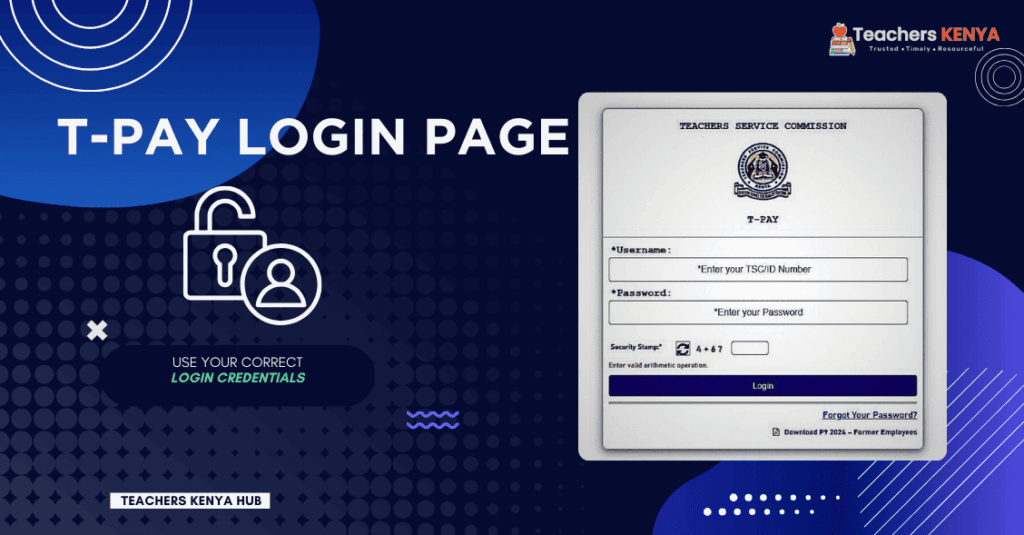
To view your online TSC payslip, open payslip.tsc.go.ke, enter your TSC Number (digits only — no “TSC/” prefix) and T-Pay password, solve the security stamp arithmetic question, then click Login. From the dashboard, select the required salary month and save the statement as a PDF. Forgotten your T-Pay login password? Use the Forgot Password? link on the same page — your reset OTP goes to the phone number registered in your TSC payroll record.
📌 Quick Access: Online TSC Payslips Kenya — T-Pay Portal
- Official T-Pay Portal URL: payslip.tsc.go.ke
- Also Reachable Via: services.tsc.go.ke → T-Pay Payslips
- Login Credentials: TSC Number (digits only, no “TSC/” prefix) + T-Pay Password
- What You Can Access: Latest payslip, past payslips (PDF download), annual P9 tax certificate, SACCO / bank loan verification code
- T-Pay Helpdesk: tpay@tsc.go.ke | 020 289 2000
- Account Lockout or Lost SIM: Visit your nearest TSC Sub-County office with original National ID
Quick Navigation Guide
How to Log In to T-Pay and View Your TSC Payslip Online
What You Need Before Logging In
- TSC Number — digits only. Enter
123456, notTSC/123456. The “TSC/” prefix is not accepted by the T-Pay login field and will cause an “Incorrect Credentials” error. - T-Pay password. This is a separate password from the ones used on TPAD2, HRMIS, or TMIS. Do not assume the same password works across all TSC portals.
- Mobile number registered in your TSC payroll record. All OTP codes for password resets and account verification are sent to this specific number — not to any other number you may use personally.
- Stable internet connection on a private device. If using a cyber café, open T-Pay in Incognito / Private mode before logging in (see the security section below).
- The salary month and year you intend to view — have this ready before logging in to keep your session time short on shared devices.
TSC T-Pay Login Steps
- Open payslip.tsc.go.ke in your browser. Before entering any credentials, confirm the address bar shows payslip.tsc.go.ke with a padlock icon indicating a secure HTTPS connection.
- In the Username / TSC Number field, type your TSC Number using digits only — no letters, no slash, no spaces.
- Enter your T-Pay password in the password field. If you have forgotten it, skip step 3 and proceed directly to the Forgot Password? link on the login page.
- Solve the security stamp arithmetic question displayed on the page and type your answer in the provided box.
- Click Login.
- On the dashboard that loads, locate the Payslip or Salary Statement menu item. The exact label can change with system updates — check all visible menu options if you do not see it immediately.
- Use the month and year selector to choose the payroll period you need.
- Your salary statement will open on screen. Before downloading, confirm your name, TSC Number, duty station, and the pay period are all correct.
- Download or save the payslip as a PDF (full steps in the next section).
- Click Logout when finished. Do not simply close the browser tab, especially on a shared or public device.
First-Time T-Pay Account Activation for New TSC Teachers
T-Pay does not currently provide a public self-registration button on the login page. New teachers placed on TSC payroll receive first-time access through the steps below. There is no official T-Pay activation fee — any person demanding payment to set up your account is not an authorised TSC representative.
- Confirm with your school’s head teacher or BOM secretary that your appointment has been captured on TSC payroll and that at least one salary payment has been credited to your bank account. T-Pay only activates once you appear on the payroll system.
- Verify that your personal mobile number is correctly recorded in your TSC employment file. This is the only number to which T-Pay will send OTPs for account verification and password resets — a wrong number means you cannot recover access.
- Visit your nearest TSC Sub-County office carrying your original National ID card and TSC appointment letter. Request initial T-Pay login credentials from the office.
- Once credentials are issued, open payslip.tsc.go.ke on a private device and log in using your TSC Number and the temporary password provided by the Sub-County office.
- On first login you will normally be prompted to set a new permanent password. Create one of at least eight characters that combines an uppercase letter, a lowercase letter, a number, and a special character — for example:
Teach@2026!. Avoid passwords based on your name, TSC Number, or date of birth. - Log out completely and log back in using your new password to confirm the account is fully active.
- Open the Payslip section and verify your salary records are visible before closing the session.
Expected result: You can view your first TSC payslip online for the current or most recently processed salary month. If the Sub-County office confirms your account is active but you still cannot log in, contact the T-Pay helpdesk at tpay@tsc.go.ke and include your TSC Number and the name of the Sub-County office visited.
How to View and Download Your Latest TSC Payslip as a PDF
- Log in to payslip.tsc.go.ke using your TSC Number and T-Pay password.
- From the dashboard, open the Payslip or Salary Statement section.
- To retrieve your latest payslip, select the most recent month from the period selector. The current month’s payslip is typically available from the 5th of each month once TSC Accounts has finalised the payroll run. If the current month is not yet visible in the dropdown, the salary cycle has not yet been closed.
- Review the payslip on screen. Confirm that your name, TSC Number, duty station, and the pay period shown in the header are all correct before you save or share the document.
- If a Download PDF button is displayed, click it to save the file directly to your device’s downloads folder.
- If no download button appears, use your browser’s built-in print function: press Ctrl + P on Windows or Command + P on Mac / iOS, then set the destination to Save as PDF. On Android, tap the browser’s Share icon and select Print → Save as PDF.
- Open the saved PDF to confirm it loaded fully and that no page has been cut off.
- Save the file with a clear descriptive name — for example:
TSC-Payslip-October-2026.pdf. Store it in a secure personal folder, not in a shared cloud drive or a public downloads folder on a café computer. - To access past payslips, return to the period selector and choose an earlier month. T-Pay normally retains salary records for several years. If a specific historical month does not appear in the dropdown, contact tpay@tsc.go.ke.
- Log out of T-Pay before closing the browser — particularly on any shared or public device.
| Task | Recommended Method | What to Confirm Before Leaving |
|---|---|---|
| View only (no file needed) | Open the correct month in the T-Pay dashboard | Name, station, pay period, and all amounts are correct |
| Download PDF (button shown) | Click the portal’s Download PDF control | Saved file opens fully; all pages and the period header display |
| Save as PDF (no download button) | Browser → Print → Save as PDF (Ctrl+P / Cmd+P) | No page is cut off; salary period is visible in the printed header |
| Print a physical copy | Use a trusted printer; collect the copy immediately after printing | No extra copies remain in the printer queue on a shared machine |
| Access from a smartphone | Chrome or Firefox mobile browser → Share icon → Print → Save as PDF | PDF pages are complete and readable at standard screen zoom |
How to Download Your Annual TSC P9 Tax Certificate for KRA iTax
Your TSC P9 form is the annual tax deduction certificate you need when filing your income tax return on the KRA iTax portal at itax.kra.go.ke. TSC releases P9 certificates through T-Pay, normally between February and March each year for the previous tax year. A P9 download link typically appears on the public T-Pay login page and may not require you to be logged in to access it.
- Open payslip.tsc.go.ke in your browser.
- On the public login page, look for a link labelled Download P9 [Year] — Current Employees or Download P9 [Year] — Former Employees.
- Select the link that matches your employment status:
- Current Employees — you were in TSC service for all or part of the tax year in question.
- Former Employees — your TSC employment ended during or before that tax year.
- On the P9 request page, enter the details asked for — typically your Payroll Number, National ID Number, and Surname — exactly as they appear on your TSC appointment letter. A mismatch in any field will prevent the certificate from generating.
- The P9 certificate will load on screen. Before downloading, verify the tax year, your full name, total gross earnings, and total PAYE deducted are correct.
- Download the P9 and store it securely. Upload it to KRA iTax when filing your annual tax return and keep a personal copy for at least five years.
If the P9 link for the current tax year is not yet showing on T-Pay, TSC Accounts has not yet closed the payroll year — check back from the first week of February each year. Never use a P9 issued for one tax year when filing for a different period; the figures on the certificate are specific to the year printed on it.
How to Generate a SACCO or Bank Loan Salary Verification Code
T-Pay allows you to generate a 30-day salary verification code that your SACCO loan officer or bank credit desk can use to confirm your TSC payroll details electronically. This eliminates the need to deliver certified physical payslip copies to your lending institution and is accepted by most TSC-affiliated SACCOs — including Mwalimu National, Stima, and Elimu.
- Log in to payslip.tsc.go.ke using your TSC Number and T-Pay password.
- From the dashboard, look for a section labelled Loan Appraisal, Salary Verification, or SACCO / Bank Clearance Code. The label may vary with system updates — review all available menu options if you do not locate it immediately.
- Select the option to Generate Verification Code or Request Clearance Code.
- The system generates a unique alphanumeric code tied to your current payroll record. This code is valid for 30 days from the date it is generated; after that it expires and a new one must be requested.
- Provide this code directly to your authorised SACCO loan officer or bank credit officer. They enter it on their end to retrieve your current net salary, total deductions, and existing TSC payroll loan commitments from the payroll database — no physical payslip copy is required.
- Do not share this code on social media, in WhatsApp groups, or with anyone other than the authorised lending officer. It contains sensitive payroll reference data linked to your TSC Number.
If the loan appraisal section is not visible on your T-Pay dashboard, first confirm with your SACCO or bank whether they use this digital route — some institutions have a direct TSC payroll integration and do not need the teacher to generate a code manually. If the feature should be available but is missing from your account, contact tpay@tsc.go.ke.
Your TSC Payslip Explained: Earnings, Deductions and Statutory Levies
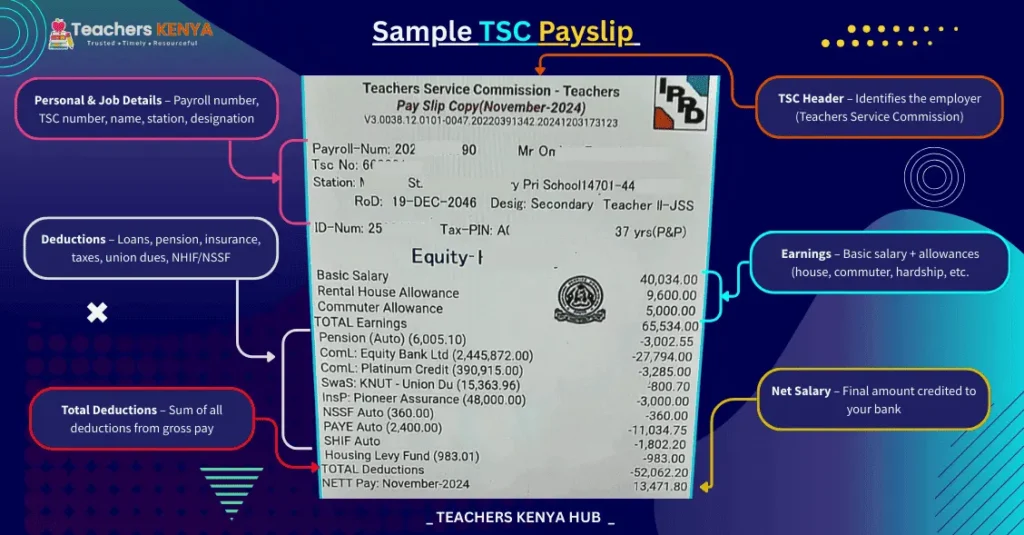
Every TSC payslip online is divided into three sections: Earnings, Statutory Deductions, and Third-Party or Voluntary Deductions. The table below explains each common line item. If an item appears that you do not recognise, compare it with your previous month’s payslip before raising a query — salary restructuring, new government levies, or a revised loan schedule can introduce new entries mid-year.
| Item / Code | Description | Category |
|---|---|---|
| Basic Salary (BS) | Core TSC salary based on the teacher’s job group and salary scale — e.g., C1–D5 for primary teachers, D1–E5 for secondary teachers | Earnings |
| House Allowance (HA) | Residential allowance determined by job group and duty station category (urban, peri-urban, or rural) | Earnings |
| Commuter Allowance (CA) | Flat monthly transport allowance for teachers classified as non-residential at their duty station | Earnings |
| Hardship Allowance (HRA) | Additional allowance paid to teachers stationed in officially gazetted hardship zones — arid, semi-arid, or remote postings | Earnings |
| Special School Allowance (SSA) | Paid to teachers working in schools for learners with special educational needs; rate set by the relevant TSC Circular | Earnings |
| PAYE | Pay As You Earn income tax deducted monthly and remitted to KRA under the Income Tax Act. Reflected on your annual P9 certificate | Statutory Deduction |
| SHA (formerly NHIF) | Social Health Authority monthly levy deducted under the Social Health Insurance Act (SHIA 2023), which replaced NHIF from October 2023 | Statutory Deduction |
| Affordable Housing Levy (AHL) | 1.5% of gross salary deducted under the Affordable Housing Act; matched by a corresponding TSC employer contribution | Statutory Deduction |
| NSSF | National Social Security Fund monthly contribution deducted under the NSSF Act | Statutory Deduction |
| KNUT Dues | Kenya National Union of Teachers monthly membership subscription, applicable to registered primary school teachers | Union Dues |
| KUPPET Dues | Kenya Union of Post Primary Education Teachers monthly subscription, applicable to secondary school and TVET teachers | Union Dues |
| KUSNET Dues | Kenya Union of Special Needs Education Teachers monthly subscription | Union Dues |
| KEWOTA Dues | Kenya Women Teachers Association monthly subscription | Union Dues |
| BBF | Benevolent Fund — a welfare contribution administered through the teacher’s registered union | Third-Party Deduction |
| SACCO Shares | Monthly share-deposit contribution to the teacher’s registered SACCO (e.g., Mwalimu National, Stima, Elimu, Kenya Educators) | Third-Party Deduction |
| SACCO Loan | Monthly loan repayment instalment deducted at source from TSC payroll per the SACCO loan schedule | Third-Party Deduction |
A change in your net pay from one month to the next is not automatically an error. Salary adjustments, new statutory levies, loan restructuring, arrears payments, or the commencement or cessation of an allowance can all affect your total. For verified TSC salary structures and current allowance rates, refer to the relevant TSC Circular rather than social media tables, which are frequently out of date and unverified.
T-Pay Login Errors and How to Fix Them
| Error / Problem | Likely Cause | Immediate Fix | Escalate When |
|---|---|---|---|
| Account Suspended — Multiple Invalid Attempts | Three or more consecutive failed login attempts trigger a 24-hour automatic lockout | Wait 24 hours, then use the official Forgot Password? link on payslip.tsc.go.ke to self-reset via OTP sent to your registered number | Account remains suspended after 24 hours, or the self-reset OTP does not arrive — visit your TSC Sub-County office in person with original National ID and appointment letter |
| Incorrect Password / Wrong Credentials | Password entered incorrectly, or TSC Number typed with the “TSC/” prefix instead of digits only | Re-enter the TSC Number as digits only (no slash, no letters, no spaces). Use the Forgot Password? link if the password is no longer known | Password reset OTP does not arrive on the registered phone number after retrying once |
| OTP Not Received for Password Reset | Mobile network delay, SIM temporarily inactive, or the phone number recorded on TSC payroll is incorrect | Wait 2 minutes, confirm your network has signal, and make one additional OTP request. Do not send multiple rapid requests — these can create conflicts in the system | The masked phone number shown on the reset screen is not yours — contact tpay@tsc.go.ke or visit the Sub-County office to have the registered number corrected |
| Invalid Session / System Under Maintenance | End-of-month payroll processing — typically from the 25th of the month through to the 5th of the following month — causes temporary unavailability | Wait 30–60 minutes and retry during an off-peak window (early morning or late evening). Avoid repeatedly reloading the portal during the processing period | The error persists for more than 24 hours outside the standard payroll processing window |
| P9 Certificate Not Generating | TSC Accounts has not yet closed the tax year, or the payroll number or National ID was entered incorrectly on the P9 request page | Confirm it is February or later for the prior tax year. Re-enter your Payroll Number, National ID, and Surname exactly as on your official TSC appointment letter | It is March or later and the P9 is still not available — email tpay@tsc.go.ke with your TSC Number and the affected tax year |
| Payslip Shows Zero or Blank Amount | Salary not yet processed for the selected month, or the payroll record is under a query or hold | First confirm whether the salary was actually credited to your bank account. If not credited, the issue is upstream of T-Pay. If credited, retry T-Pay after the 5th of the following month | Salary was credited to your bank account but the payslip remains blank or zero after the 5th — raise the matter through your TSC County office |
| Registered Phone Number Lost or Changed — Cannot Receive OTP | SIM card lost, stolen, ported, or the number registered on TSC payroll is no longer in your possession | Do not attempt the self-reset route — the OTP will be sent to the old number which you cannot access. Go directly to your nearest TSC Sub-County office with your original National ID and TSC appointment letter to request a payroll number update | Sub-County office directs the matter to TSC headquarters — follow up on 020 289 2000 or email tpay@tsc.go.ke |
When reporting a T-Pay problem by email, include your TSC Number, the affected salary month or tax year, a concise description of the error message displayed, and a screenshot with sensitive personal details masked. Do not include your full password, OTP code, bank account number, or an unredacted National ID copy in any email correspondence.
Security Rules for Accessing TSC Payslips Online from a Cyber Café
⚠️ Security Advisory: Protecting Your T-Pay Account on Shared and Public Devices
- Always use Incognito / Private browsing mode. Before opening payslip.tsc.go.ke on any shared computer, press Ctrl + Shift + N (Chrome) or Ctrl + Shift + P (Firefox). This prevents the browser from storing your login session, saved passwords, or browsing history on that machine.
- Never click “Remember Password.” If the browser prompts you to save your T-Pay password, always select Never or Not for this site. A saved T-Pay password on a café computer can be accessed by the next person who uses it.
- Clear the downloads folder before leaving. After saving your payslip PDF, delete the file from the café computer’s downloads folder immediately. A TSC payslip contains your salary figures, loan deductions, and SACCO information — it should not remain on a public machine.
- Do not share your T-Pay password or OTP with the café operator, a colleague, or anyone else in the shop, regardless of the reason offered. TSC staff and Teachers Kenya Hub do not need your credentials to assist you.
- Always log out of T-Pay using the portal’s Logout button — do not simply close the browser tab. Confirm the screen has returned to the T-Pay login page before walking away from the workstation.
- Verify the URL before logging in. Confirm the address bar shows exactly payslip.tsc.go.ke with a padlock icon. Phishing pages can closely replicate the T-Pay login appearance and steal credentials.
- If your credentials may have been exposed, immediately use the official Forgot Password? link on payslip.tsc.go.ke to change your password and notify the T-Pay helpdesk at tpay@tsc.go.ke to flag any suspicious activity on your account.
Official TSC T-Pay Helpdesk and Support Contacts
🏛️ Teachers Service Commission — Verified T-Pay Support Contacts
- T-Pay Helpdesk Email: tpay@tsc.go.ke — use for missing payslips, P9 certificate queries, and login issues that the Sub-County office cannot resolve
- General TSC Enquiries: info@tsc.go.ke
- TSC Main Telephone: +254 (020) 289 2000 | +254 (020) 289 2100 | 0722 208 552
- TSC Headquarters: TSC House, Kilimanjaro Road, Upper Hill, Private Bag, 00100 Nairobi
- For Account Lockouts and Mobile Number Updates: Visit your nearest TSC Sub-County office in person with your original National ID card and TSC appointment letter. No prior appointment is required for T-Pay account queries
- Social Media: @TSC_KE on Twitter / X | Teachers Service Commission – Kenya on Facebook
Frequently Asked Questions
What is the official URL for online TSC payslips in Kenya?
The official portal for online TSC payslips is payslip.tsc.go.ke. You can also access it through the TSC Online Services Hub at services.tsc.go.ke and navigate to the T-Pay section. Always verify that the address bar shows a URL ending in .tsc.go.ke with a padlock icon before entering any credentials.
What login details do I need for the TSC T-Pay payslip portal?
You need your TSC Number entered as digits only (for example 123456, not TSC/123456) and your T-Pay password. This password is entirely independent of the passwords used on TPAD2, HRMIS, or TMIS — they are separate systems. First-time users who have never received credentials should visit their TSC Sub-County office with their National ID and appointment letter.
How do I get my latest TSC payslip on T-Pay?
Log in to payslip.tsc.go.ke, open the Payslip or Salary Statement section on the dashboard, and select the current or most recent month from the period selector. Your latest payslip is normally available from the 5th of each month after TSC Accounts finalises the payroll run. If the current month’s entry is not yet in the dropdown, the processing cycle has not yet closed for that period.
My T-Pay account is suspended after multiple login attempts. What do I do?
T-Pay automatically locks an account after three consecutive failed login attempts. Wait 24 hours, then use the official Forgot Password? link on payslip.tsc.go.ke to reset your credentials via OTP. If the OTP does not arrive because your registered phone number has changed or been lost, do not use the self-reset — visit your nearest TSC Sub-County office in person with your original National ID and TSC appointment letter to have the number corrected and the account unlocked.
How do I download my TSC payslip as a PDF on my phone?
Open payslip.tsc.go.ke in Chrome or Firefox on your phone and log in with your TSC Number and T-Pay password. Select the required salary month, then tap the portal’s Download PDF button if one appears. If no button is shown, tap the browser’s Share icon, select Print, and choose Save as PDF. Open the saved file to confirm all pages are complete before logging out.
When is the TSC P9 form available for KRA iTax filing?
TSC typically releases P9 tax certificates for the previous year between February and March. The download link appears on the public T-Pay landing page at payslip.tsc.go.ke — you may not need to be logged in to access it. Select Current Employees or Former Employees as applicable, enter your payroll number, National ID, and surname when prompted, then download and save the certificate for your KRA iTax submission. If no P9 link is yet visible, check again from the first week of February.
Is there an activation fee to access the T-Pay payslip portal for the first time?
No. There is no official fee to activate, unlock, or access a T-Pay account. Initial credentials for new teachers are issued at no charge by the TSC Sub-County office. Any person demanding payment — whether in person, by phone, or through a WhatsApp message — to activate your T-Pay account or download your payslip on your behalf is not an authorised TSC representative and should be reported to the TSC helpdesk at tpay@tsc.go.ke.
Related Guides on Teachers Kenya Hub
- 📂 TSC Online Services Portal — Complete Directory — Your master reference for all TSC digital systems: TPAD2, HRMIS, TMIS, Teacher Online Registration, and more in one guide.
- 📊 TPAD2 Portal Login and Teacher Performance Appraisal Guide — How to submit your annual performance self-appraisal, upload supporting evidence, and check your TSC assessment outcome online.
- 📝 HRMIS Leave Application Guide — Step-by-step instructions for applying for annual, sick, study, or maternity leave through the TSC HRMIS portal at hrmis.tsc.go.ke.
- 🏥 SHA Registration and Afya Yangu Portal Guide — How to register on the Social Health Authority portal, add your spouse and children as dependants, and confirm your monthly SHA deduction appears correctly on your payslip.
- 📋 KNEC CP2 Portal Login Guide — For teachers contracted as KNEC examination supervisors, invigilators, or centre managers during national assessments and CBC evaluations.
